Three honest reshaping modes
Cutting pixels, adding pixels, and distorting pixels are the only real options, so each one is a separate button rather than a hidden guess made on your behalf.
Pick the proportion a platform wants, decide whether to trim the edges or pad them, and export at the size you name.
Trim the overflow, pad the short side, or stretch to fill the frame.
Blurred backdrop bars look far better in a feed than black letterbox strips.
These steps take a picture from the wrong shape to the exact frame a platform asks for.
Drop in a JPG, PNG, WebP, or HEIC file. The current pixel size and the proportion it already sits at are shown at the top, which usually explains why a platform rejected it.
Choose a shape such as 1:1, 4:5, or 16:9 from the shape list, enter a custom pair of numbers, or pick a named platform size like the 1080 by 1920 story frame.
Crop to fill trims the overflow with a frame you can drag, pad to fit keeps everything and adds a blurred or solid backdrop, and stretch fills the frame at the cost of some distortion.
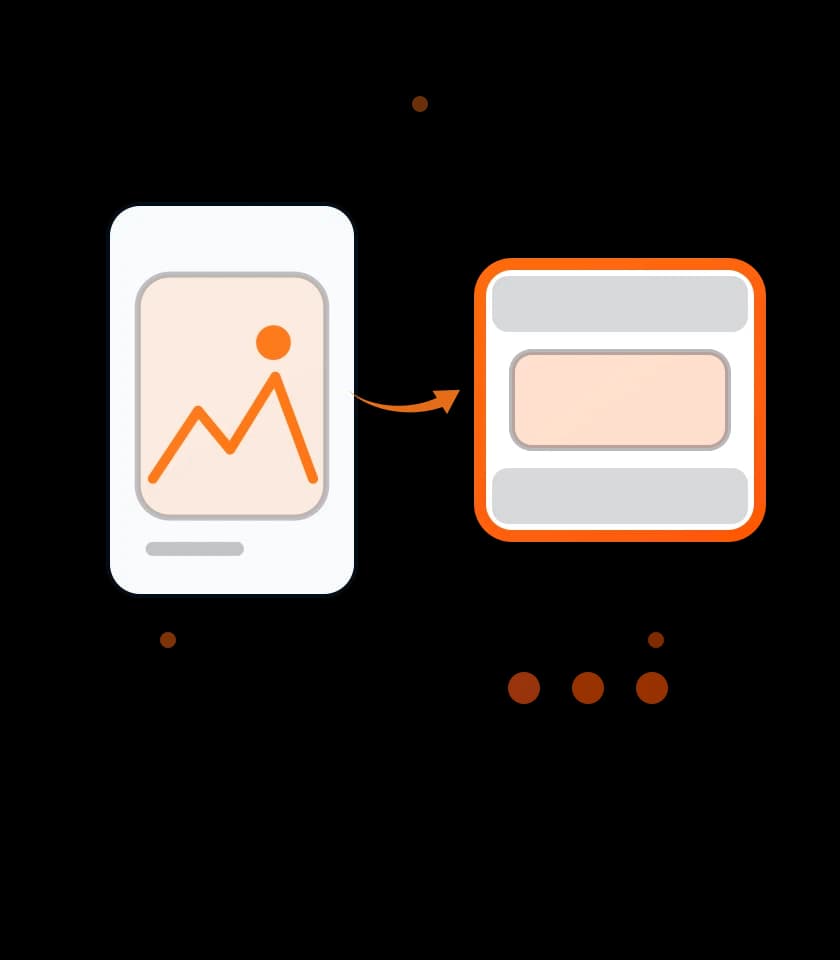
Cutting pixels, adding pixels, and distorting pixels are the only real options, so each one is a separate button rather than a hidden guess made on your behalf.
Padding can be filled with a softened copy of the same picture, which sits far more naturally in a social feed than the hard black bars most converters leave behind.
Story, Reel, thumbnail, link card, banner, and pin sizes sit in one list with their exact pixel dimensions, not just their proportions, so nothing needs resizing afterwards.
Left alone, the export takes the largest size the source can fill without inventing pixels, and typing a width overrides it while the height keeps following the shape.
A compare toggle puts the original next to the reshaped version, which is the quickest way to judge how much of the scene padding or trimming actually cost you.
The result panel names the new pixel dimensions and the encoded file size, letting you tune the quality slider until the picture clears an upload limit.
Because a reshaped picture is often a product shot or a client asset that has not launched yet, it is worth stating plainly where the work happens and what survives it.
Reshaping is drawn onto a canvas inside this browser tab, so the redraw is instant and the picture is never posted to a queue on somebody else's hardware.
The loaded picture, the target proportion, and the bar colour exist only while this tab is open, and closing it discards every one of them.
Reshaping is open to everyone without signing in, and the exported file carries no watermark or badge from this site.
The mode you pick changes what the audience sees, so it helps to think about it before exporting.
Reshaping runs on this device, so unreleased artwork never reaches a server.
Use pictures you are licensed to edit when preparing client or brand material.
A wide photo squeezed into a tall frame loses a lot of the scene.
Padding keeps everything but leaves the subject smaller in the final frame.
Stretch mode changes proportions, so faces and circles visibly distort.
Transparent padding needs PNG or WebP, since JPG has no transparency channel.
Aspect Ratio Changer reshapes one picture at a time and writes exports up to 8000 pixels along the longer edge.
Pick 16:9 and stay in crop to fill mode. The frame trims the overflowing top and bottom instead of adding bars, and you drag the picture to choose which part is kept.
Yes, switch to pad to fit. Every pixel survives and the short side gains a blurred copy of the photo, a solid colour, or transparency depending on what you choose.
1:1 at 1080 by 1080 for a square, 4:5 at 1080 by 1350 for portrait, and 9:16 at 1080 by 1920 for a story or reel. All three sit in the platform size list.
It distorts it. A small stretch between similar shapes often goes unnoticed, but pushing a wide photo into a tall frame will visibly squash faces, logos, and circles.
It depends on the new pixel count and the format. The panel shows the encoded size before you download, so lower the quality slider or switch format if it is too heavy.
4.6 (343 ratings)